How to Turn OpenAI's Prompt Guide into Shareable Image Cards
Stop sharing ugly screenshots. Use Markdown to create clean, readable visual cards of the latest AI prompt frameworks for LinkedIn and X.
On this page
OpenAI recently released a new prompt guide for general users, emphasizing a critical shift: focus on results, write fewer steps.
Whenever new AI frameworks or best practices drop, creators and professionals rush to share these insights with their teams or followers on LinkedIn and X (Twitter). But there is a recurring problem: how do you share an AI prompt framework effectively?
If you copy and paste the plain text, it gets lost in the feed. If you take a screenshot of the ChatGPT interface or the official documentation, the text is often too small, the cropping is awkward, and it looks unprofessional.
The best way to share structured knowledge is to use clean, readable visual cards. Here is how to turn OpenAI's new prompt guidelines into beautiful image cards using Markdown.
Why Markdown works better than screenshots#
A good social media asset should do one job well: make an idea easy to understand at a glance.
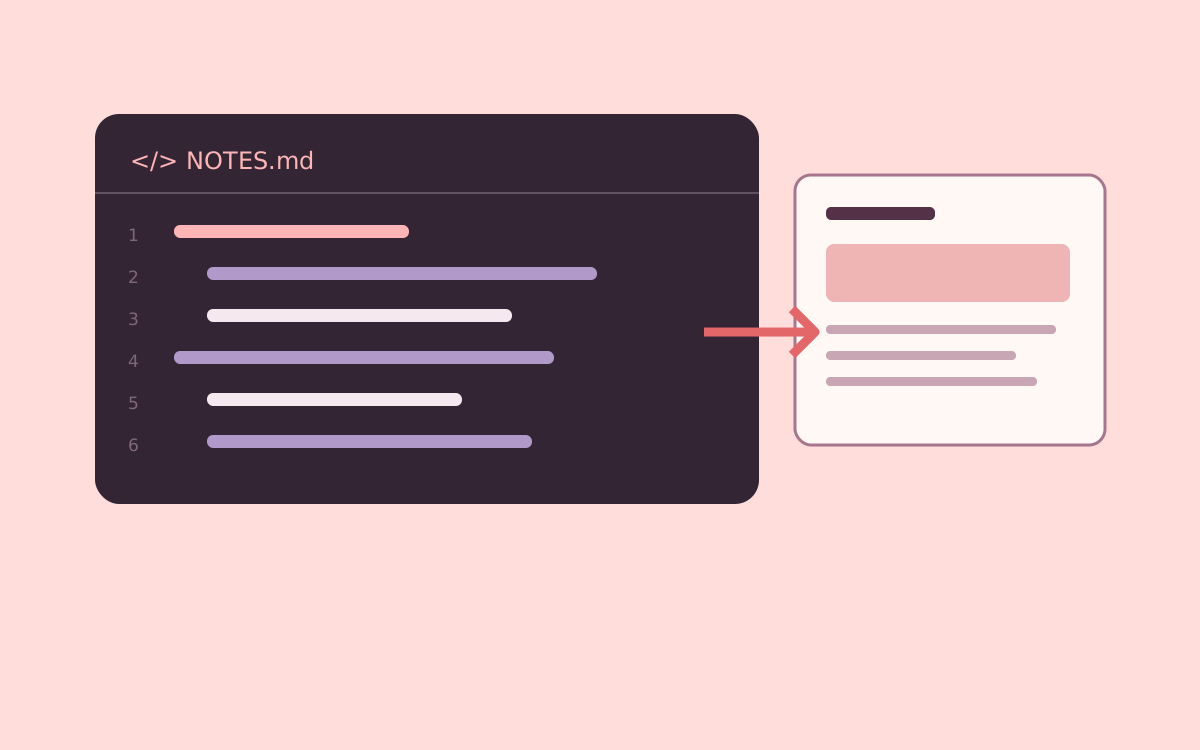
Markdown is inherently structured. By translating a dense AI prompt guide into simple Markdown headings and bullet points, you strip away the noise. When you pair this structure with an export tool like Markdown to Image, you get a portable, professional visual card that stops the scroll.
The Workflow: From OpenAI Doc to Image Card#
You don't need design skills to make this work. Just follow these three steps:
Step 1: Extract the core principle#
Don't try to summarize the entire OpenAI guide in one image. Pick one specific, highly actionable rule. For example, the shift from "step-by-step instructions" to "defining the desired result."
Step 2: Format into clean Markdown#
Use one H1 heading for the main takeaway, and bullet points or code blocks for the examples. Keep the text concise so it remains readable on mobile screens.
Step 3: Paste and Export#
Paste your structured Markdown into Markdown to Image. Check the real-time preview to ensure the text isn't too crowded, then export it as a crisp PNG.
Ready-to-use Markdown Templates#
Want to try it right now? Here are two ready-to-copy Markdown templates based on OpenAI's latest guidelines. Copy the code block below, paste it directly into our converter, and you will instantly have a beautiful card ready for your next LinkedIn post.
Template 1: The "Results Over Steps" Rule#
# 💡 OpenAI's New Prompt Rule

Stop writing overly detailed, step-by-step instructions. Focus on the final result instead.

## ❌ The Old Way (Too rigid)
"First, read the text. Then, extract the names. Next, put them in a table. Finally, sort them."

## ✅ The New Way (Result-focused)
"Extract all names from this text and output them as an alphabetically sorted table."

**Why it works:** Modern models are smart enough to figure out the intermediate steps. Giving them room to breathe yields better results.
Template 2: The "Reference Text" Rule#
# 📚 The Reference Text Framework

AI models can hallucinate when answering questions about esoteric topics. OpenAI recommends providing reference text to ground the model.

## The Prompt Formula:
Use triple quotes to separate instructions from the source material.

`Answer the question using only the provided text.`
`Question: [Insert question here]`
`Text: """[Insert your reference text here]"""`

**Pro Tip:** If the model cannot find the answer in the text, instruct it to explicitly reply: "I cannot find the answer in the provided text."
Pair it with a strong caption#
The image card carries the core framework, making it easy for your audience to save or screenshot. But you still need a caption to provide context.
If you are stuck on what to write, use the AI Social Post Generator. Tell it you are sharing a visual card about OpenAI's new prompt rules, and it will help you draft a strong hook and an engaging caption to accompany your new image.
Stop sharing messy screenshots. Use Markdown to make your AI knowledge look as smart as it actually is.
Article record and sources
Part of the NavoKit article archive. Publication and update dates follow the article’s recorded metadata.
Article URLhttps://www.navokit.com/en/blog/openai-prompt-guide-visual-cards